

esim_title_asia
esim_subtitle_asia
What's included
 Installation
3 Steps to activate eSIM
for the Asia

Purchase eSIM for your destination
Choose from our wide selection of eSIM plans for over 200 countries and regions.

Install with one-click Telefy setup
Click on the link we provide you and follow the simple setup instructions.

Enable eSIM mobile data on your device
Activate your eSIM and enjoy high-speed internet whenever you go.
Stay connected
wherever you go
 |
Enjoy crystal-clear voice and video calls without interruptions. |
 |
Instantly upload stories and reels wherever you are. |
 |
Create, edit, and share content seamlessly with stable data speed. |
 |
Navigate with confidence and zero loading time. |
Optimized performance for all your favorite apps
Our high-speed eSIM ensures smooth performance across 4G and 5G networks. No more buffering or dropped connections, just reliable connectivity that powers your apps anytime, anywhere.
 FAQs
FAQs
Frequently asked questions
Before you travel, check out these quick answers about using eSIMs with Telefy.
What devices support eSIM?
The following is a list of manufacturers of smartphones, tablets and laptops with eSIM, grouped by operating system. This list is constantly updated as new device models are released each month.
iOS
| iPhone | 11 11 Pro 11 Pro Max 12 12 Mini 12 Pro 12 Pro Max 13 13 Mini 13 Pro 13 Pro Max 14 14 Plus 14 Pro 14 Pro Max 15 15 Plus 15 Pro 15 Pro Max 16 16 Pro 16 Pro Max Air 17 17 Pro 17 Pro Max XS XS Max XR SE 2 (2020) SE 3 (2022) |
| iPad | Air (4th generation) Air (3rd Generation) Pro 12.9‑inch (4th generation) Pro 12.9‑inch (3rd generation) Pro 11‑inch (2nd generation) Pro 11‑inch (1st generation) 9th generation 8th generation 7th generation Mini (5th Generation) Mini (6th Generation) |
Android
| Samsung | Galaxy A35 Galaxy A54 Galaxy A55 5G Galaxy S25 Galaxy S25+ Galaxy S25 Ultra Galaxy S25 Edge Galaxy S25 Slim Galaxy S24 Galaxy S24+ Galaxy S24 Ultra Galaxy S23 5G Galaxy S23+ 5G Galaxy S23 Ultra 5G Galaxy S23 FE Galaxy S22 Galaxy S22+ Galaxy S22 Ultra Galaxy Fold Galaxy Fold2 5G Galaxy Fold3 5G Galaxy Fold4 Galaxy Fold5 5G Galaxy Fold6 Galaxy Fold7 Galaxy S21+ Ultra 5G Galaxy S21 Galaxy S21+ 5G Galaxy S20 Galaxy S20+ Galaxy S20 Ultra Galaxy Z Flip Galaxy Z Flip 3 5g Galaxy Z Flip 4 Galaxy Z Flip 5 Galaxy Z Flip 6 Galaxy Z Flip 7 Galaxy Z Flip 7FE Galaxy Note 20+ Galaxy Note 20 Galaxy Note 20 Ultra Xcover7 |
| Nuu Mobile | X5 |
| Pixel 3 & 3 XL Pixel 3a & 3a XL Pixel 4, 4a & 4 XL Pixel 5, 5a Pixel 6, 6a, 6 Pro Pixel 7, 7 Pro Pixel 8, 8a, 8 Pro Pixel Fold Pixel 9, 9 Pro, 9 Pro XL Pixel 9 Pro Fold | |
| Sony | Xperia 10 III Lite Xperia 10 IV Xperia 10V Xperia 1 IV Xperia 5 IV Xperia 1 V Xperia Ace III Xperia 5 V |
| Xiaomi | 12T Pro 13 13 Lite 13 Pro 13T 13T Pro 14 14 Pro 14 Ultra 15 15 Ultra Blackshark 3 Redmi note 13 Pro+ |
| Sharp | Aquos Sense 4lite Aquos Sense 6s Aquos Sense 7 Aquos Sense 7plus Aquos Wish Aquos Wish 2 Aquos Wish 3 Aquos Zero 6 Aquos R7 Aquos R8 Aquos R8 Pro Aquos Sense 8 Simple Sumaho6 |
| Rakuten | Mini Big-S Big Hand Hand 5G |
| Honor | Magic 4 Pro Magic 5 Pro Magic 6 Pro Magic v2 Magic v3 90 X8 200 200 Pro |
| Gemini | PDA |
| Nokia | G60 XR21 X30 |
| OnePlus | OnePlus 11 OnePlus 12 |
| Motorola | Razr 2019 Razr 2022 Razr 5G Razr 40 Razr 40 Ultra Razr+ Edge 2022 Edge 2023 Edge+ (2023) Edge 40 Edge 40 Pro Edge 40 Neo Edge 50 Pro Edge 50 Ultra Edge 50 Fusion Moto G Power 5G (2024) Moto G 53 Moto G 54 Moto G 35 G52J 5G G52J 5G II G53J 5G G54 5G G84 G34 |
| Huawei | P40 P40 Pro Huawei 80 Pro / Pro+ / Ultra Mate 40 Pro Pura 70 Pro |
| Oppo | Find X3 Find X3 Pro Find N2 Flip Find X5 Find X5 Pro Find X8 Find X8 Pro Find N3 Find N3 Flip Reno 5A Reno 6 Pro 5G Reno 9A A55s 5G |
| HAMMER | Explorer PRO Blade 5G Blade 3 |
Windows 10
| ACER | Swift 3 Swift 7 TravelMate P2 TravelMate Spin P4 TravelMate P6 |
| ASUS | Mini Transformer T103HAF NovaGo TP370QL Vivobook Flip 14 TP401NA |
| Dell | Latitude 9510 Latitude 7410 Latitude 7310 Latitude 9410 Latitude 7210 2-in-1 Latitude 7440 Latitude 5410 Latitude 5411 Latitude 5511 |
| HP | Elitebook G5 Probook G5 Zbook G5 Spectre Folio 13 |
| LENOVO | Yoga C630 Miix 630 Yoga 520 Yoga 720 convertible laptops Flex 5G ThinkPad X1 Titanium Yoga 2 in 1 ThinkPad X1 Carbon Gen 9 ThinkPad X1 Fold ThinkPad X1 Nano ThinkPad X12 Detachable |
| SAMSUNG | Galaxy Book 2 |
| SURFACE | Go 2 Go 3 Duo Duo 2 Pro 9 Pro X Pro 5 LTE Advanced |
How to install eSIM on iPhone or iPad?
After a successful purchase you will be able to find your eSIM plans on your account. Installing the eSIM is easy and won't take longer than 5 minutes!
In the "My eSIM" tab locate the eSIM plan you wish to install and click "Install eSIM".
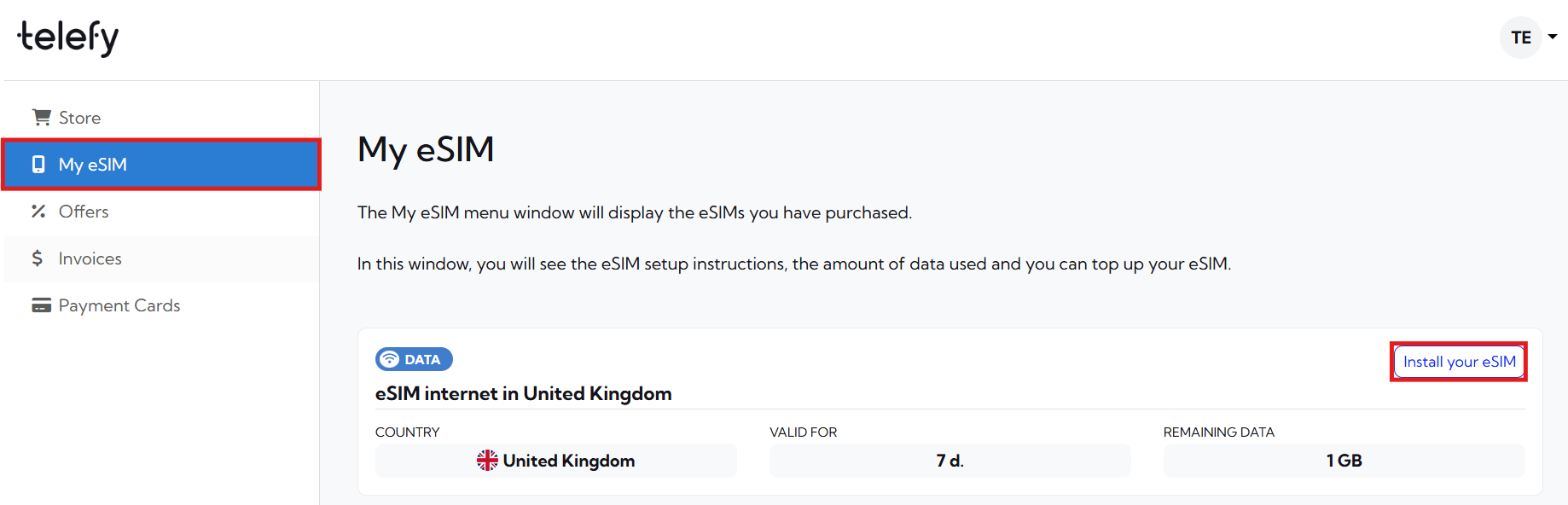
You will be presented with a QR code that you need to scan in order to initiate the installation process. You can scan it with your phone camera or follow the steps below to install the eSIM:
When installing the eSIM on this iOS device:
1. Log in to your Telefy account: Log in to your account and tap on "Install your eSIM" in "My eSIM" tab.
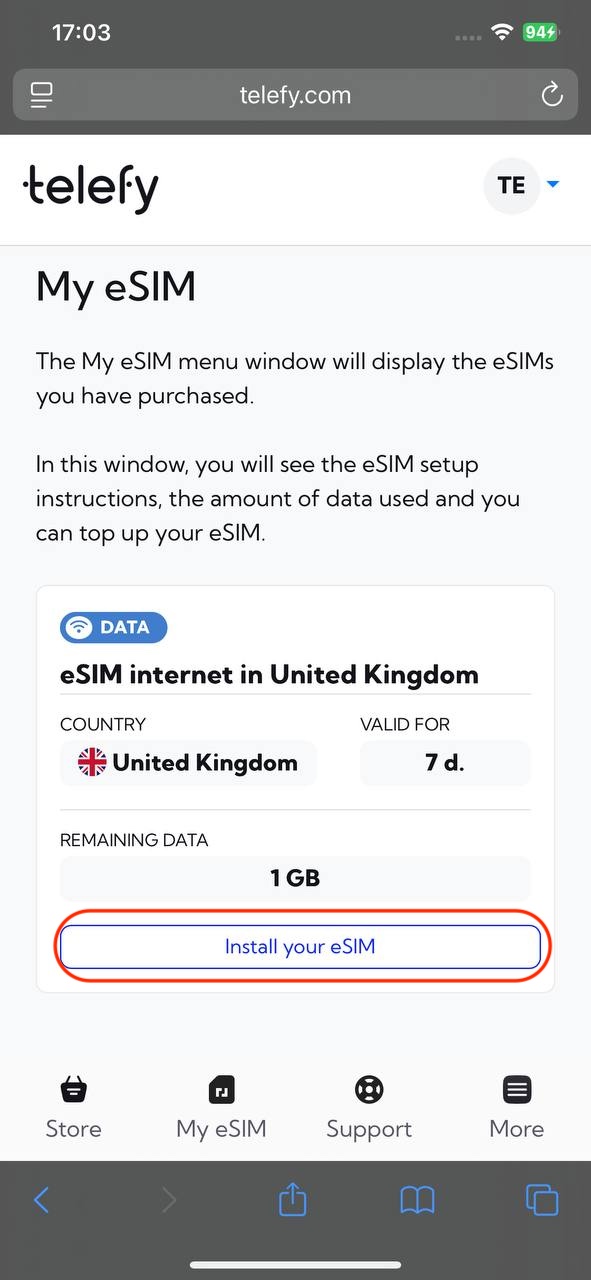
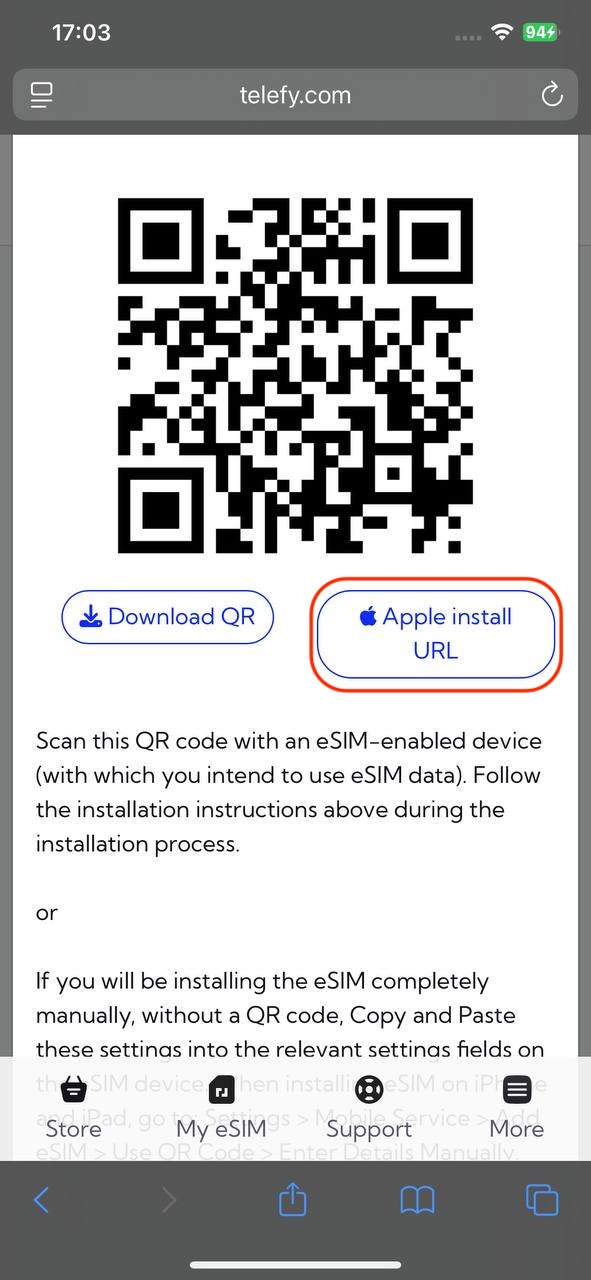
2. Tap on "Apple install URL" button: In the pop-up window locate the "Apple install URL" button and tap it to start the installation process.
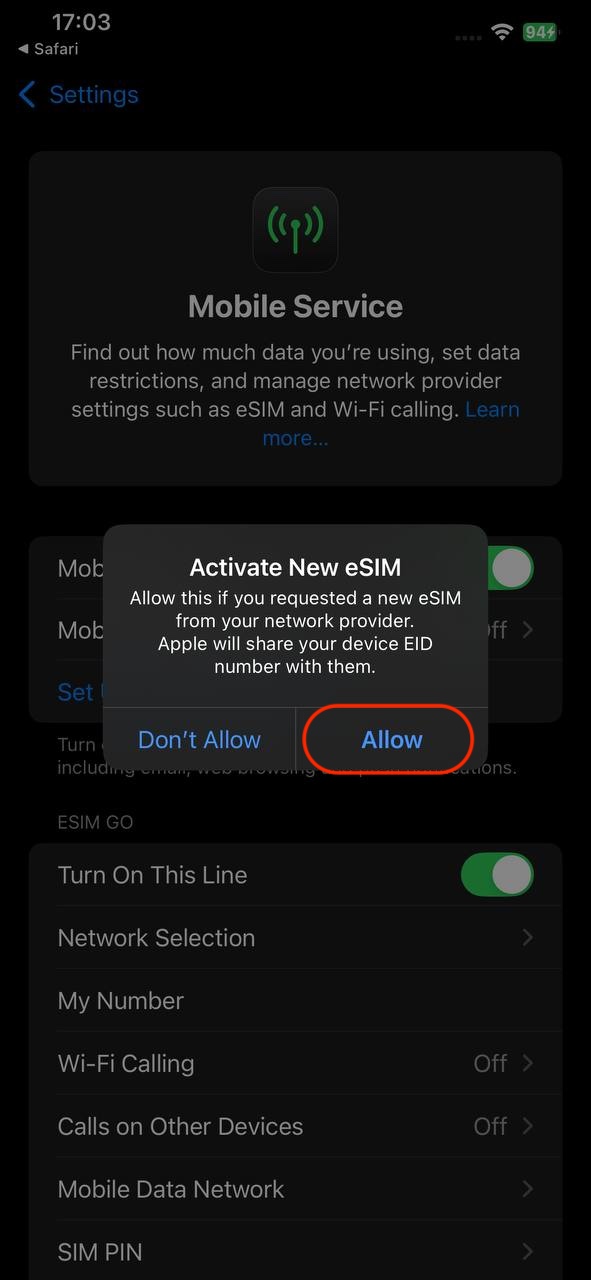
3. Follow Prompts: Follow any on-screen instructions to complete the setup.
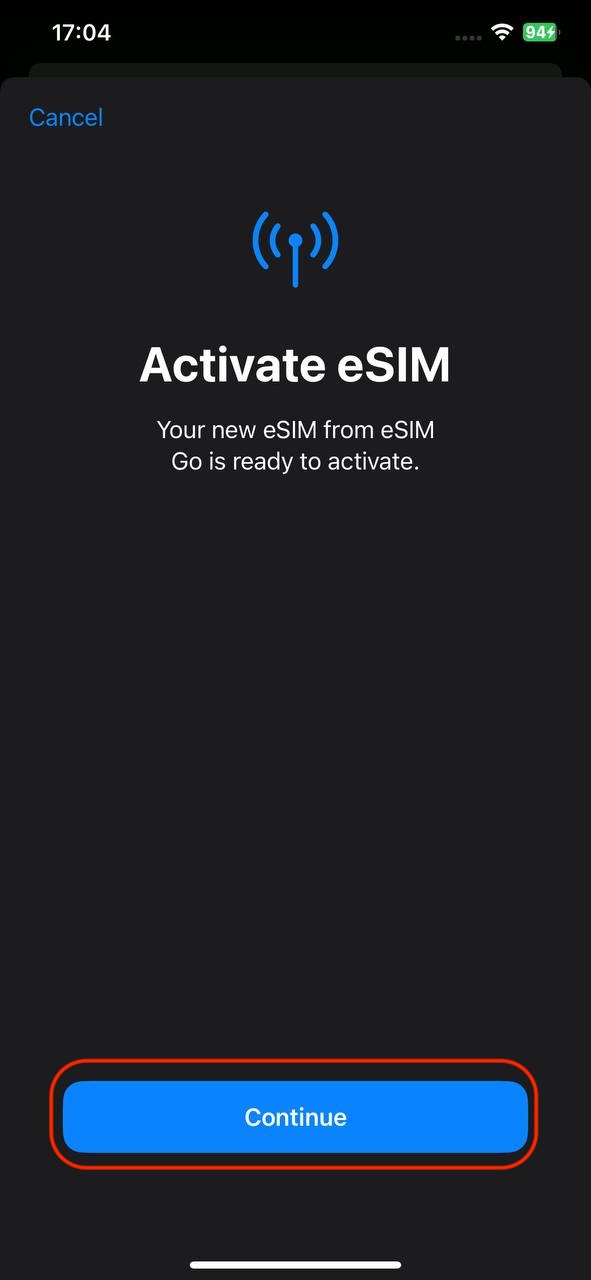
4. Label Your Plan: You can label your plan for easy identification.
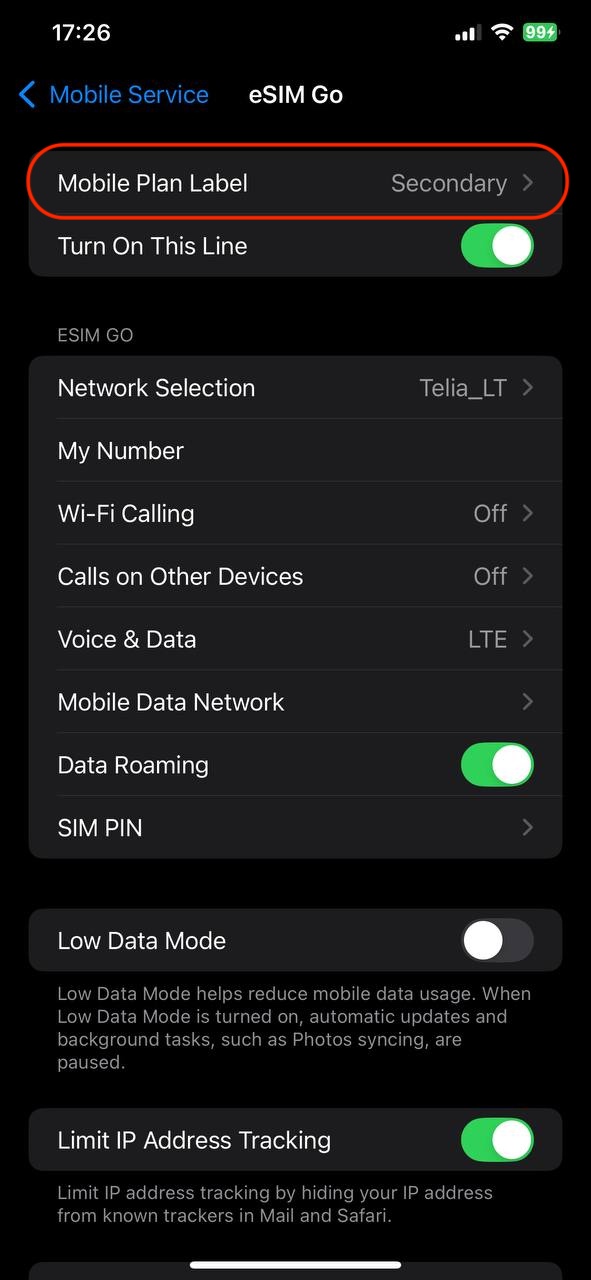
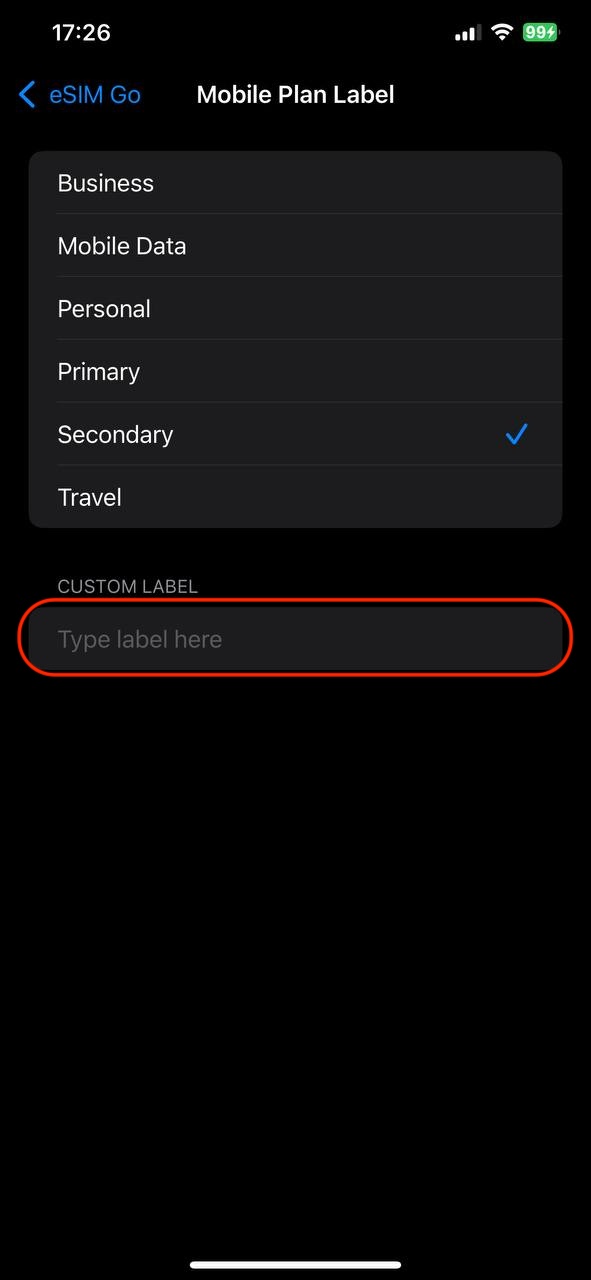
5. Turn On Data: Ensure that the line and roaming is enabled for data use.
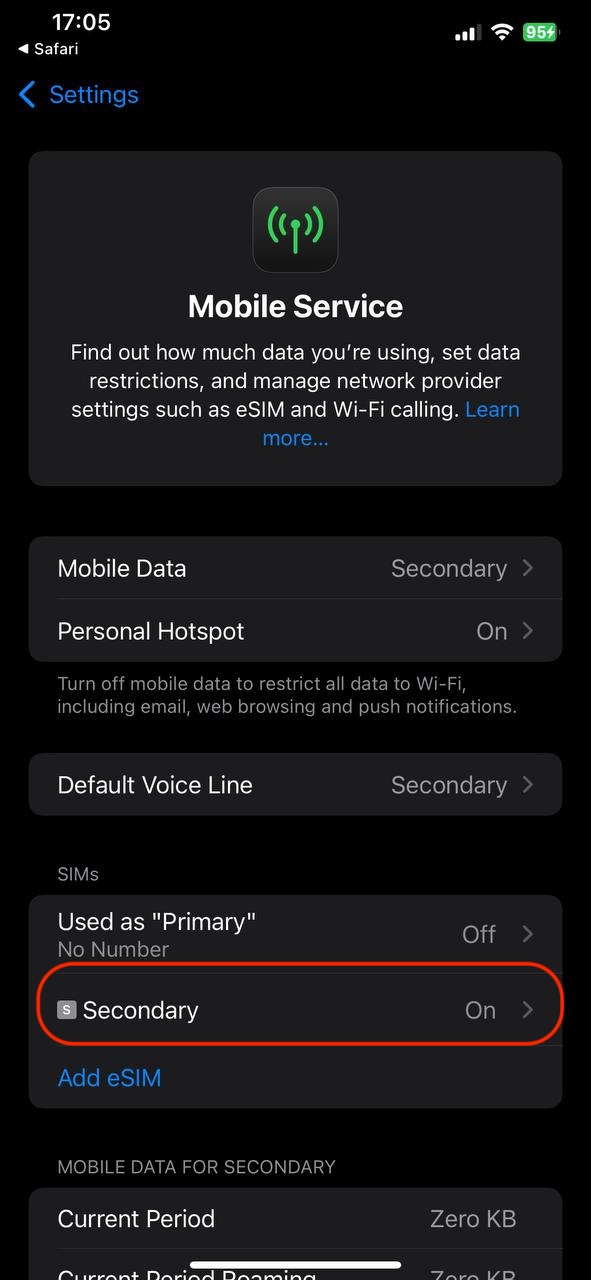
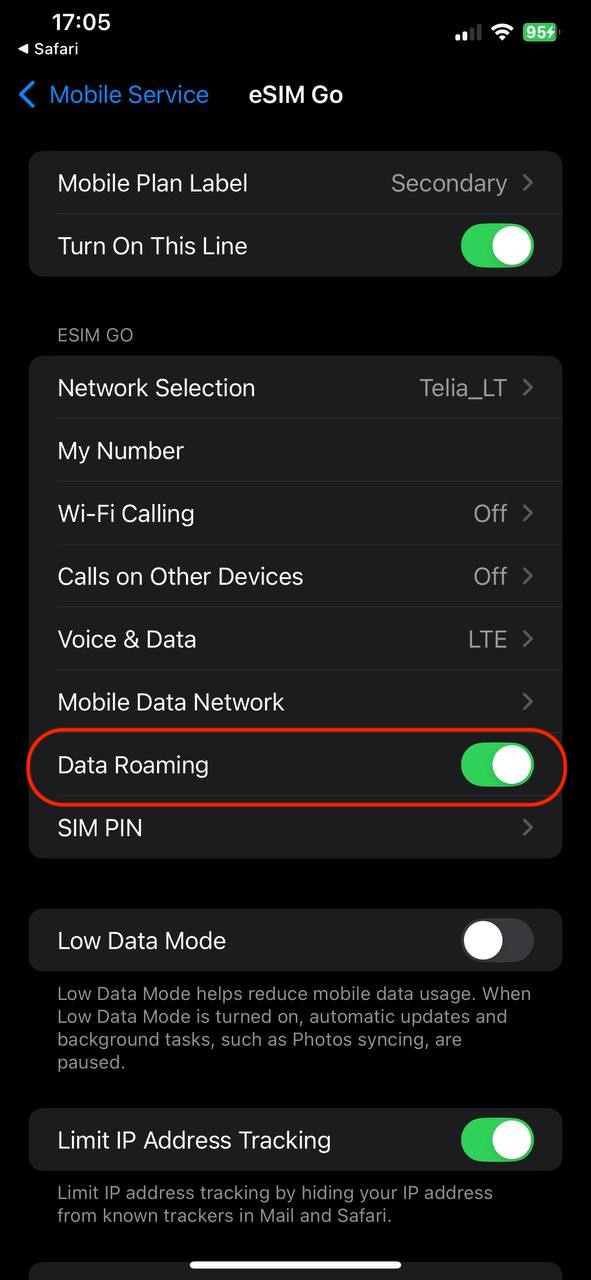
When installing the eSIM on another iOS device:
1. Open Settings: Tap on the Settings app.
2. Select Cellular: Tap on "Cellular" or "Mobile Data."
3. Add Cellular Plan: Tap on "Add Cellular Plan."
4. Scan QR Code: Use your camera to scan the eSIM QR code you received.
5. Follow Prompts: Follow any on-screen instructions to complete the setup.
6. Label Your Plan: You can label your plan for easy identification.
7. Turn On Data: Ensure that the line and roaming is enabled for data use.
If you encounter any difficulties during the installation process, do not hesitate to contact us via email [email protected].
How to install eSIM on Android smartphone or tablet?
After a successful purchase you will be able to find your eSIM plans on your account. Installing the eSIM is easy and won't take longer than 5 minutes!
In the "My eSIM" tab locate the eSIM plan you wish to install and click "Install eSIM".
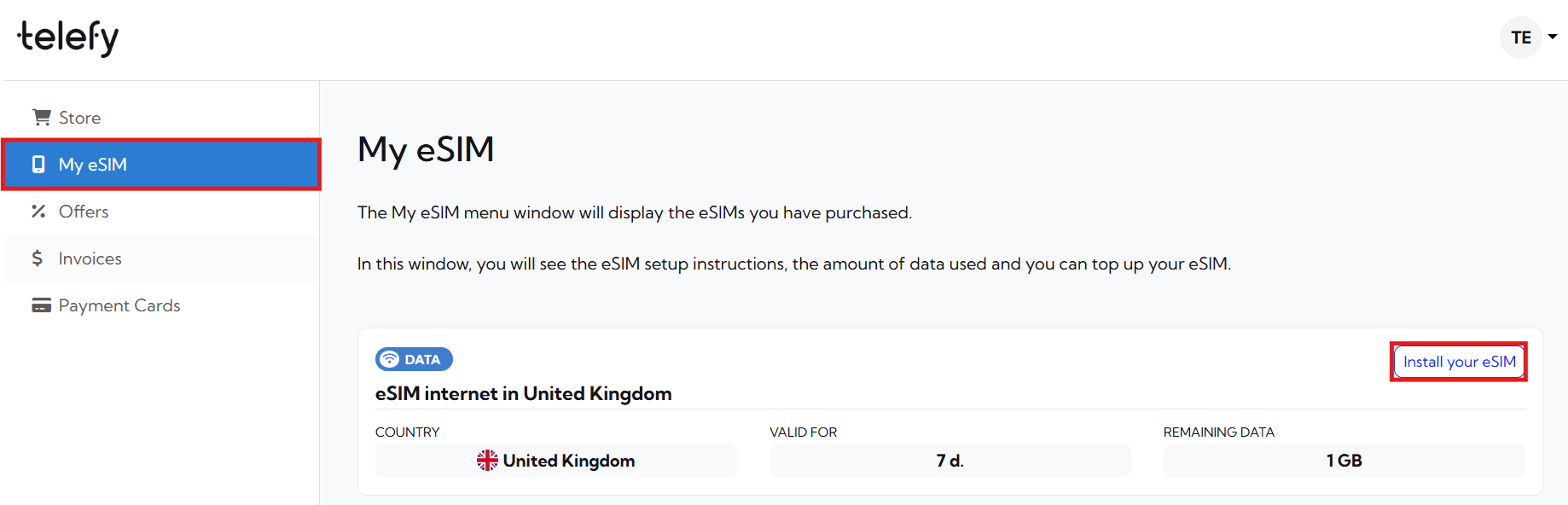
You will be presented with a QR code that you need to scan in order to initiate the installation process. You can scan it with your phone camera or follow the steps below to install the eSIM:
When installing the eSIM on this Android device:
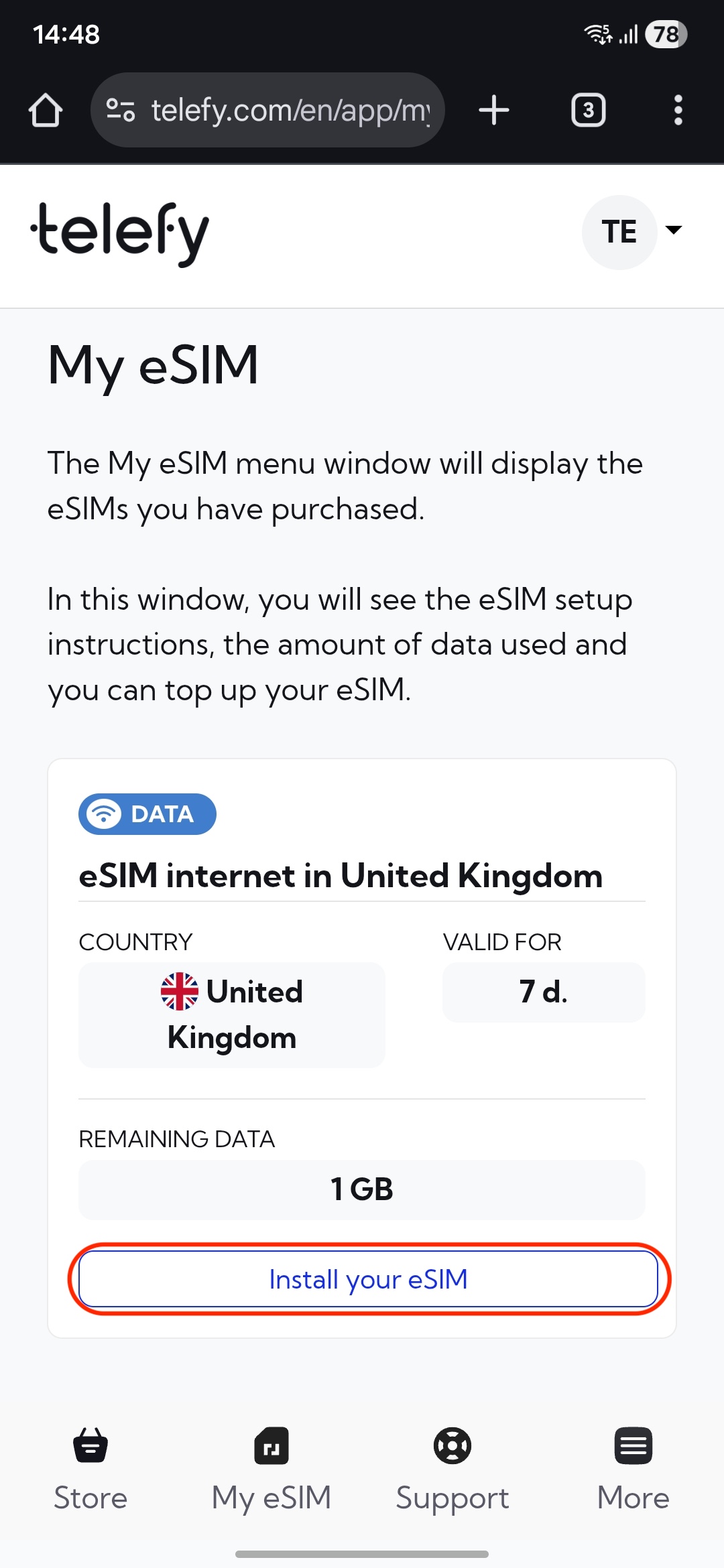
1. Log in to your Telefy account: Log in to your account and tap on "Install your eSIM" in "My eSIM" tab.
2. Download the QR code to your device: In the pop-up window locate the "Download QR" button and tap it to Download the code.
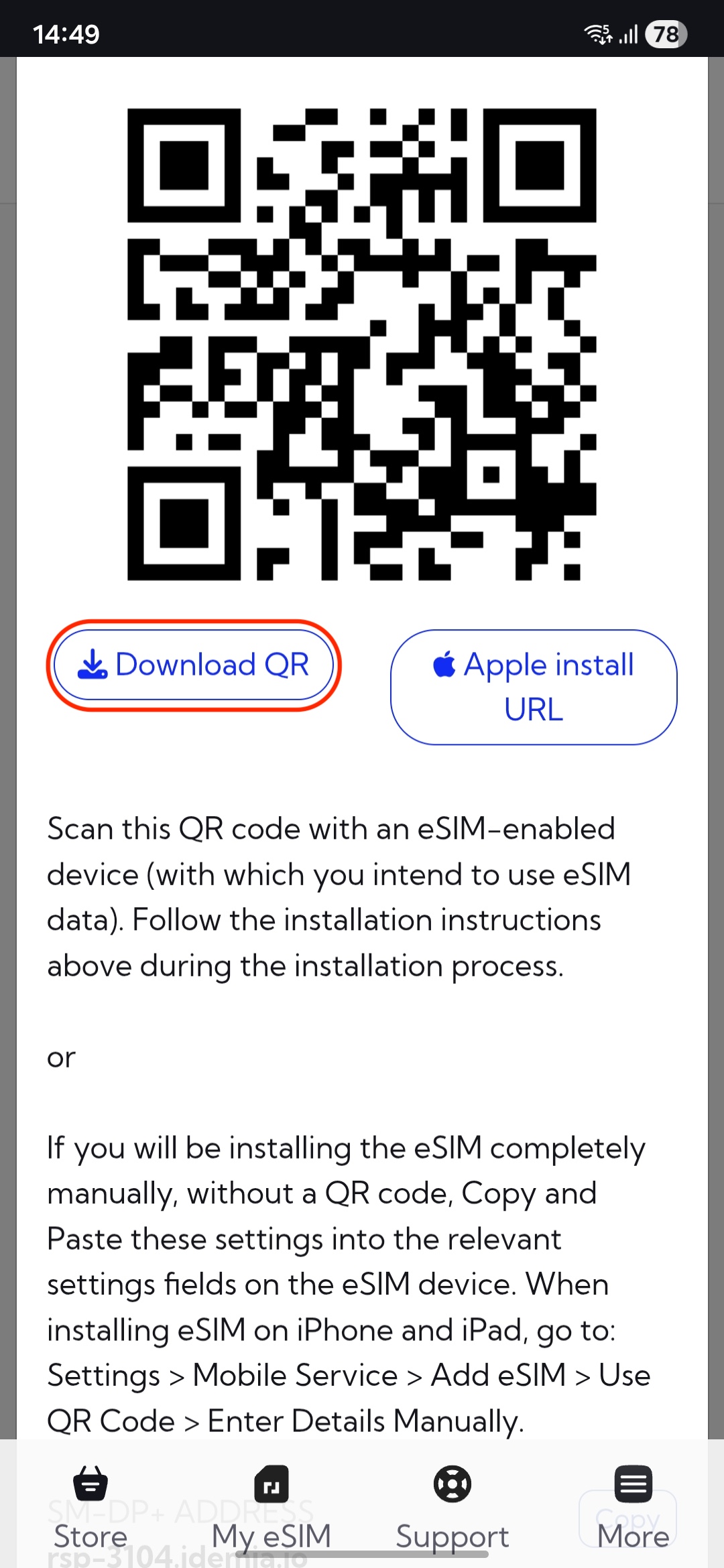
3. Open Settings: Go to the Settings app.
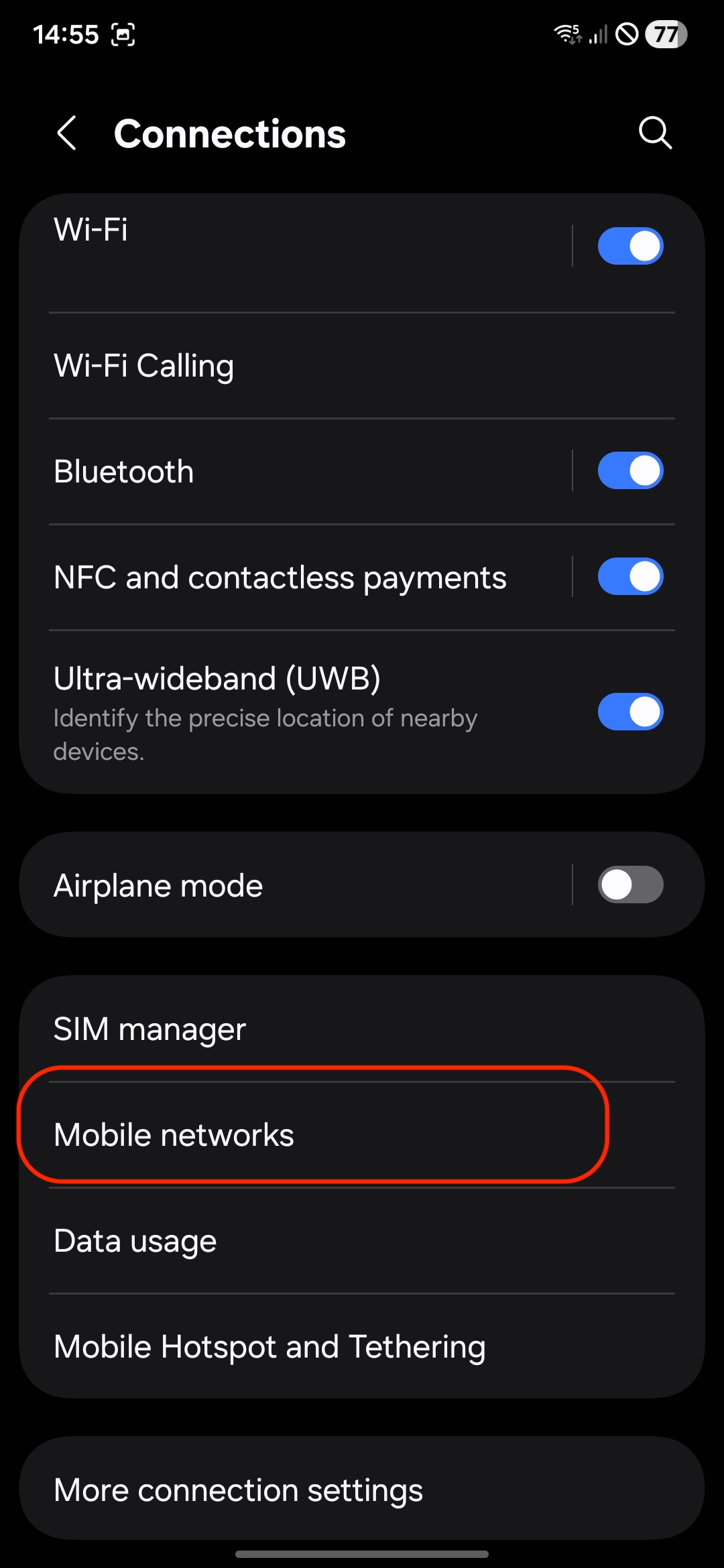
4. Select Connections: Tap on "Connections"
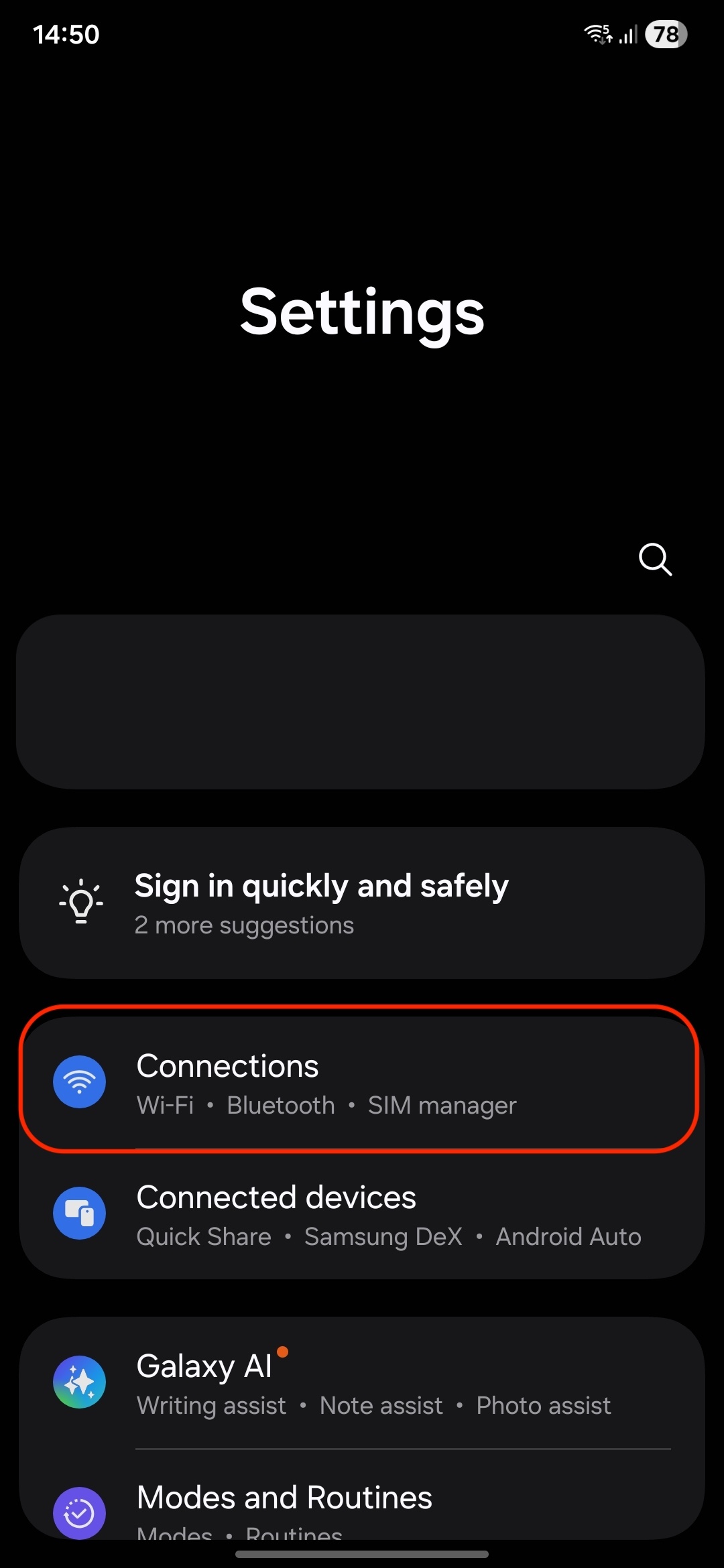
5. SIM Manager: Tap on "SIM manager."
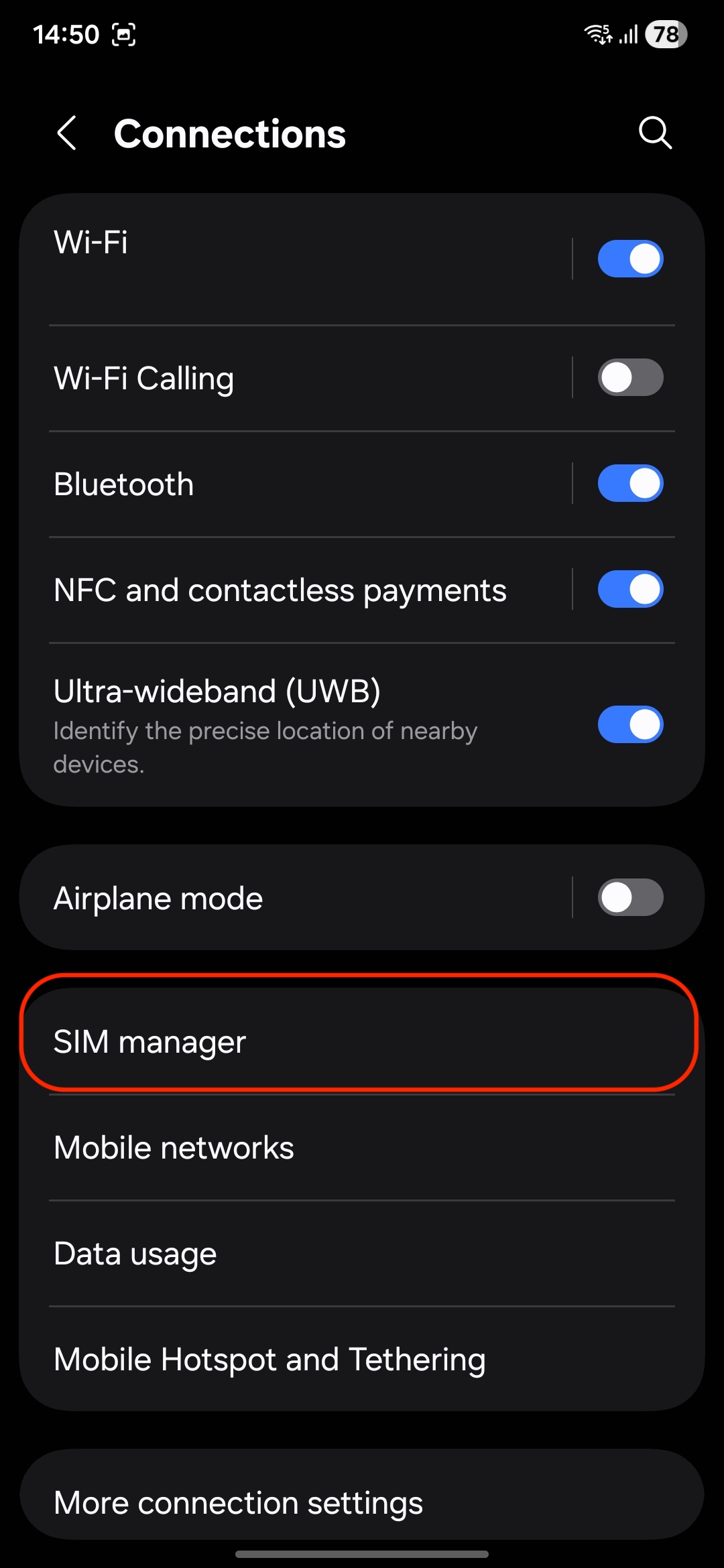
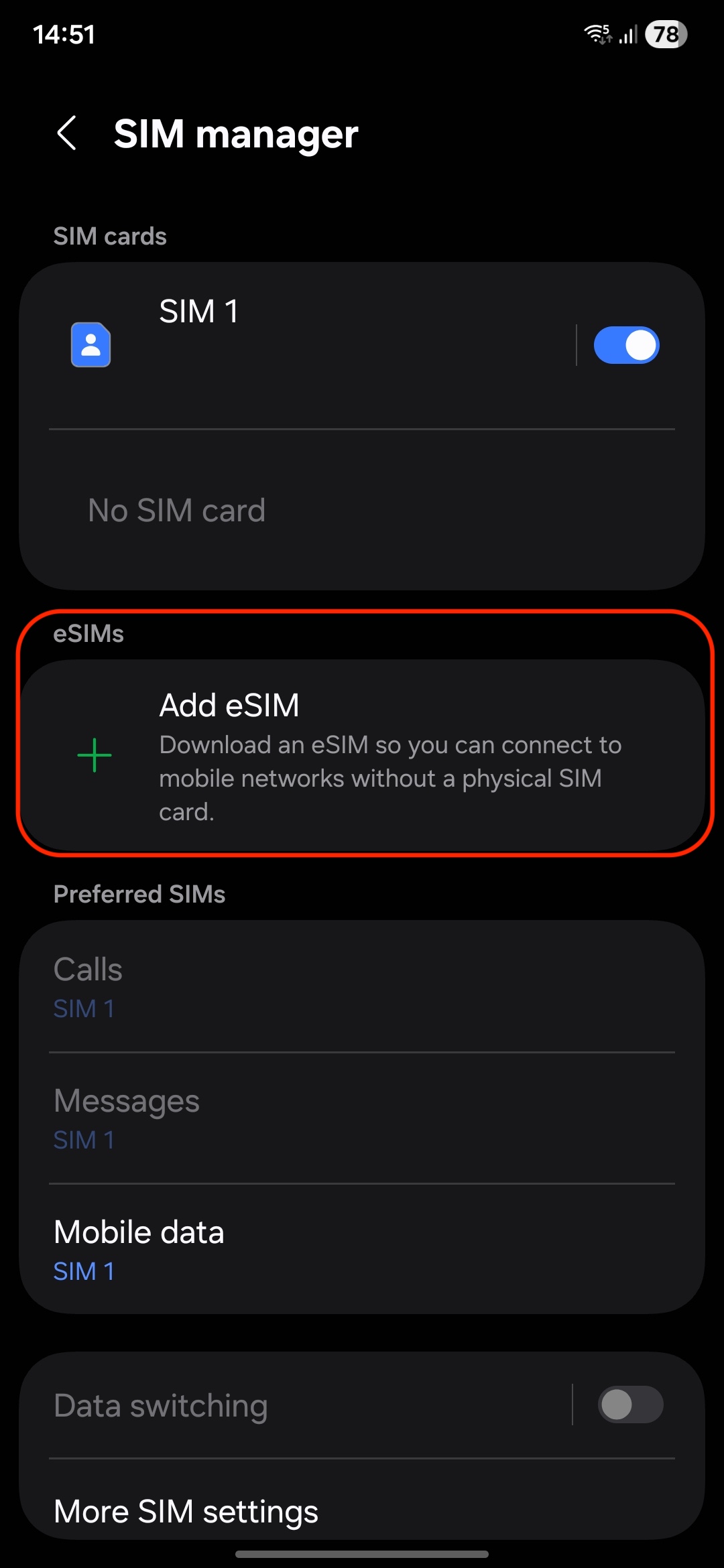
6. Add eSIM: Select "Add eSIM".
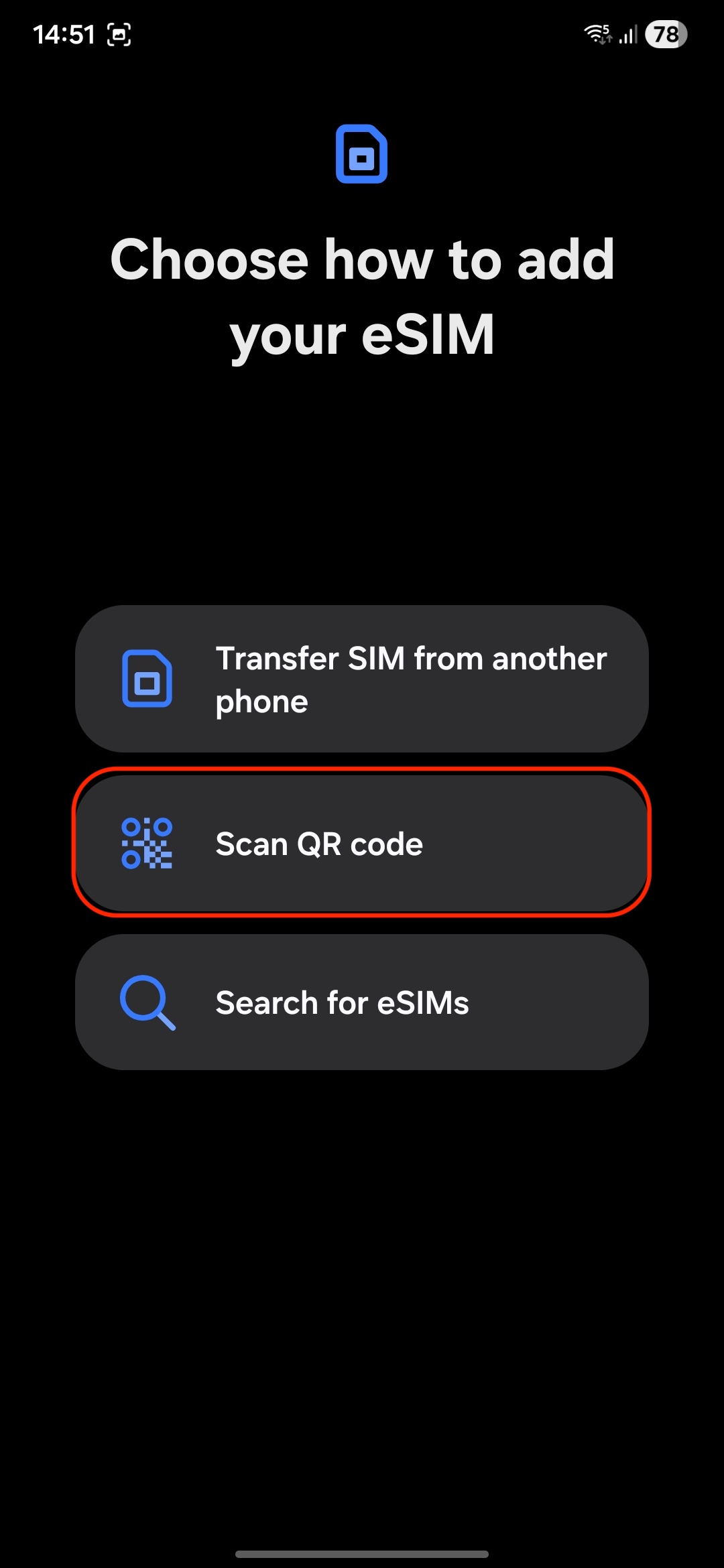
7. Scan QR Code: Use the camera to scan the eSIM QR code provided on the website or select the photo from the gallery.
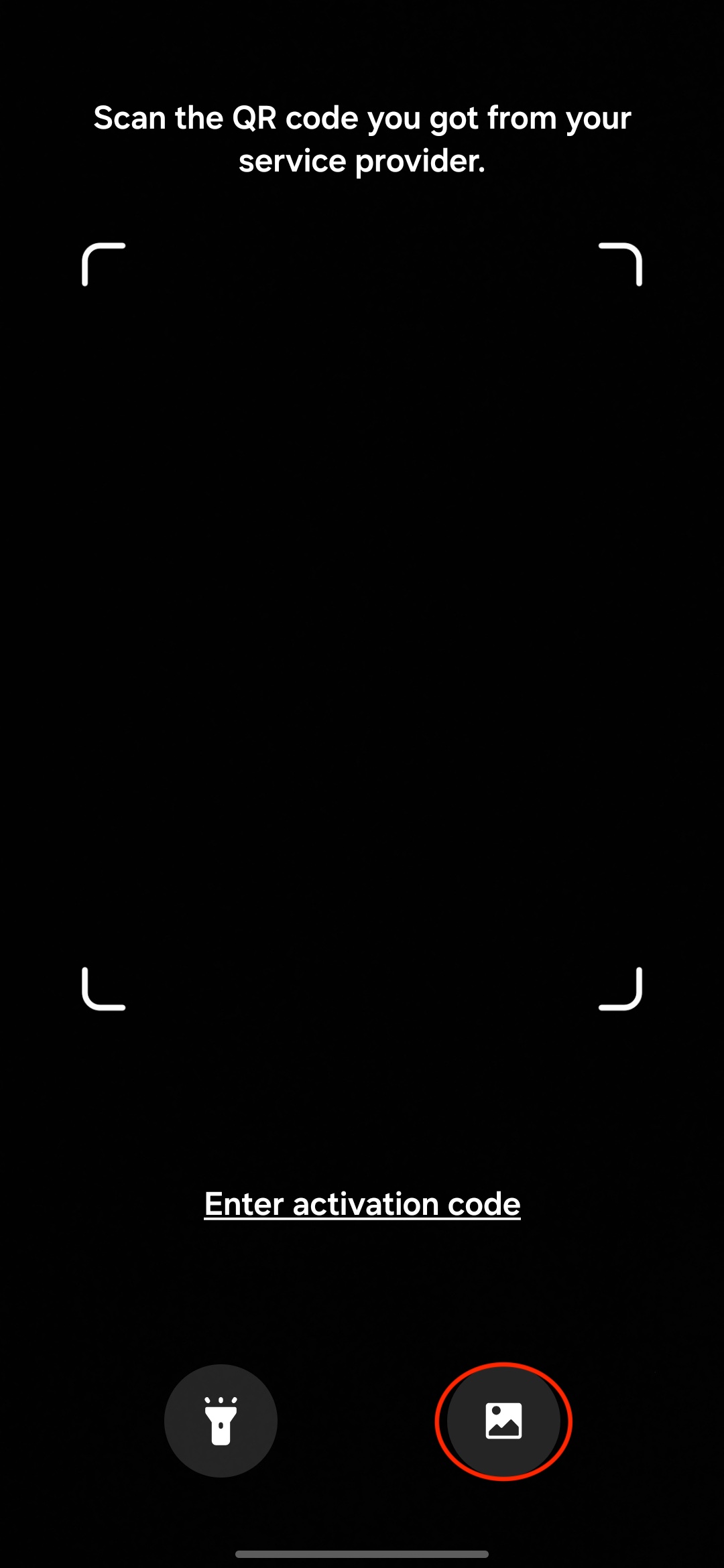
8. Follow Prompts: Complete the setup by following any on-screen instructions. You can rename the eSIM profile by taping on the edit button.
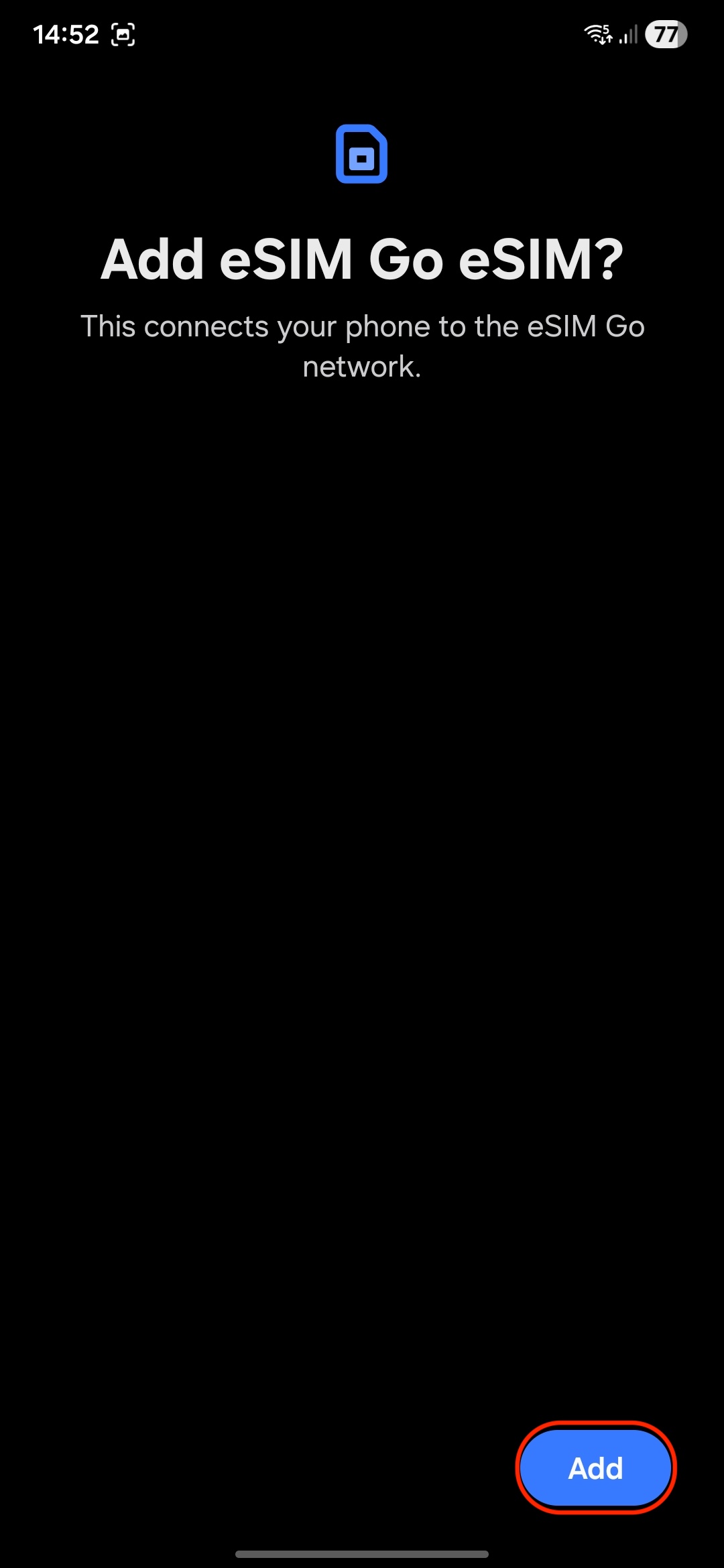
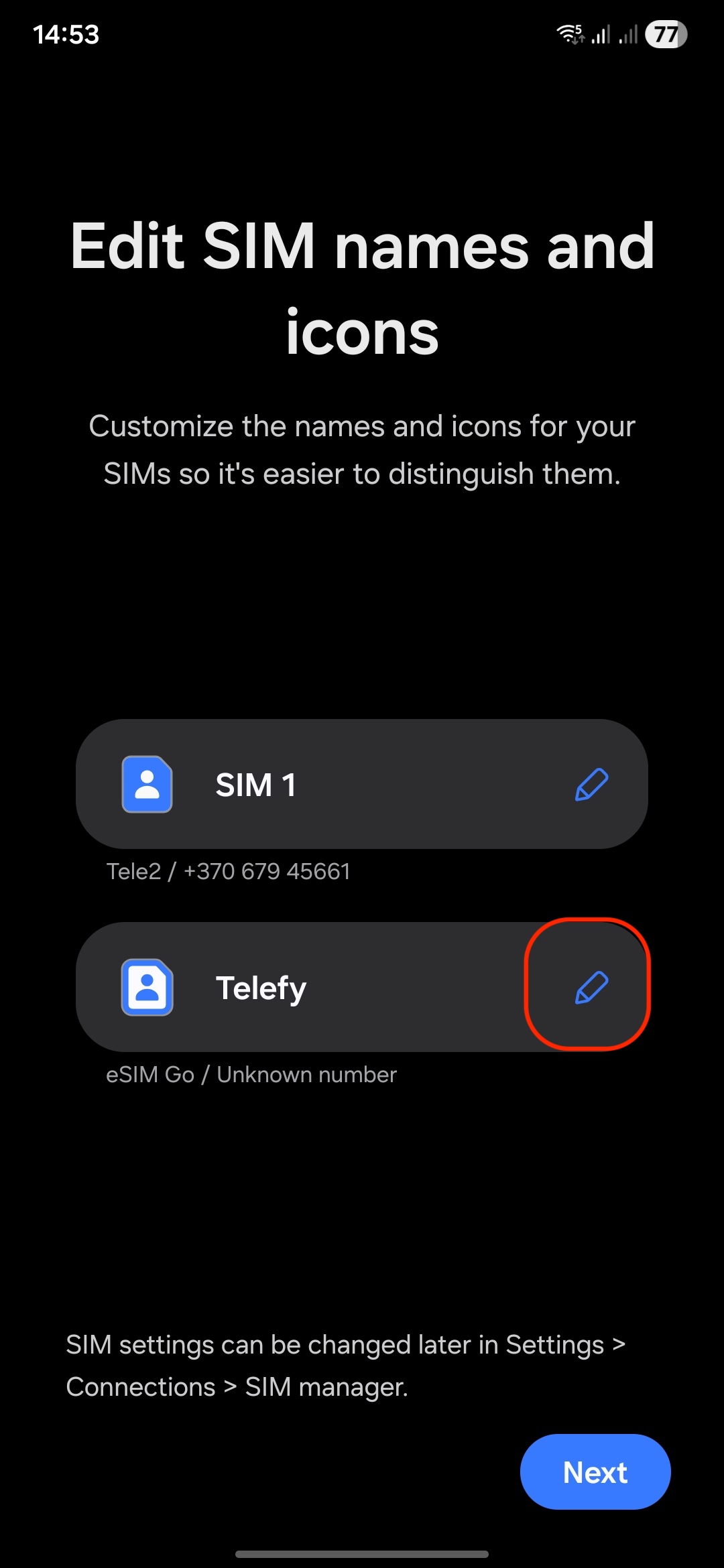
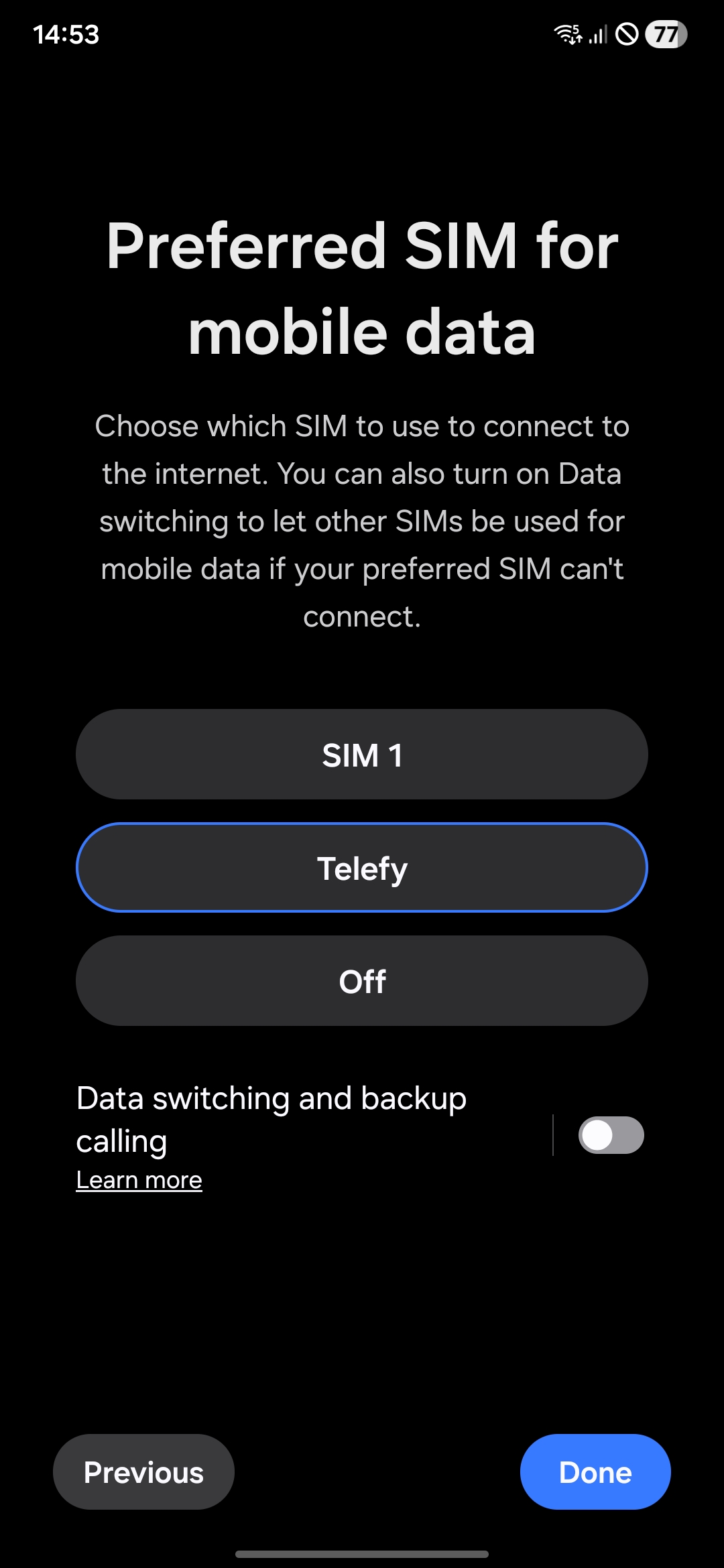
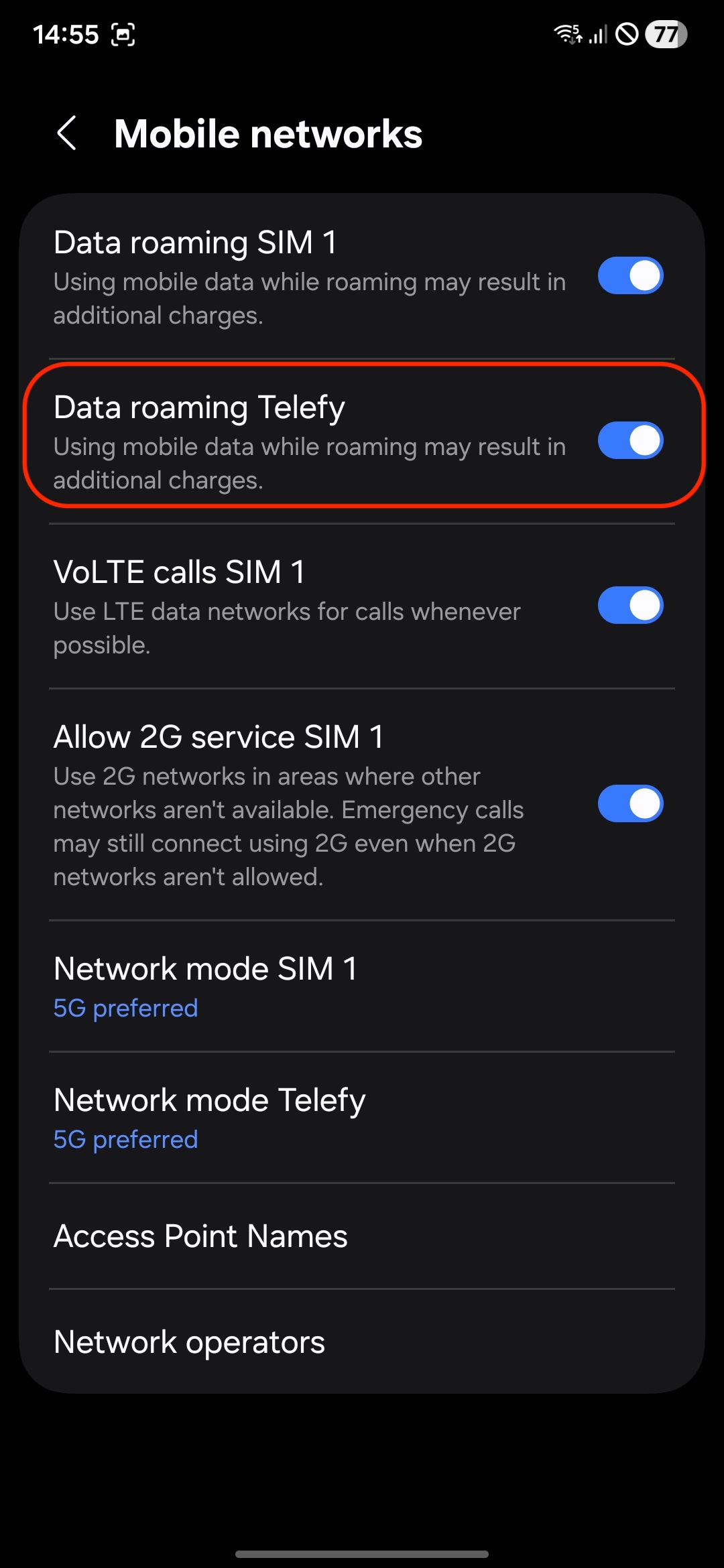
9. Enable Mobile Data: Ensure that mobile data and roaming is turned on for the eSIM.
When installing the eSIM on another Android device:
1. Open Settings: Go to the Settings app.
2. Select Connections: Tap on "Connections"
3. SIM Manager: Tap on "SIM manager."
4. Add eSIM: Select "Add eSIM".
5. Scan QR Code: Use the camera to scan the eSIM QR code provided on the website.
6. Follow Prompts: Complete the setup by following any on-screen instructions.
7. Enable Mobile Data: Ensure that mobile data and roaming is turned on for the eSIM.
If you encounter any difficulties during the installation process, do not hesitate to contact us via email [email protected].
The eSIM does not connect to the internet
Make sure you are located within the eSIM's designated coverage area.
Remember, the eSIM will only connect to the network when you are in the country where the eSIM is registered. If you installed the eSIM prior to traveling, it will only activate once you arrive at your destination. Ensure you are at the location associated with the eSIM for it to function properly.
What steps should I take if my eSIM is installed correctly but won’t connect?
If you are in the coverage area and the eSIM is properly installed, please follow these steps:
1. Disable Airplane Mode: Ensure that Airplane Mode is turned off on your device.
2. Enable Data Roaming: Go to your phone settings and enable data roaming for the eSIM.
3. Restart Your Phone: Restart your device and wait for up to 30 minutes, as it may take some time for the eSIM to connect to the internet.
4. Select Network Manually: Try manually selecting the network that the eSIM should connect to for internet access. This can often help establish a connection.
What if I still can’t connect to the internet after following these steps?
If you’ve completed these steps and still can’t connect, please contact customer support for further assistance at [email protected]
Need help? We've got your back
Our team is just a message away, ready to guide you through every step of your eSIM journey.
Let's talk

